# Manage Modules
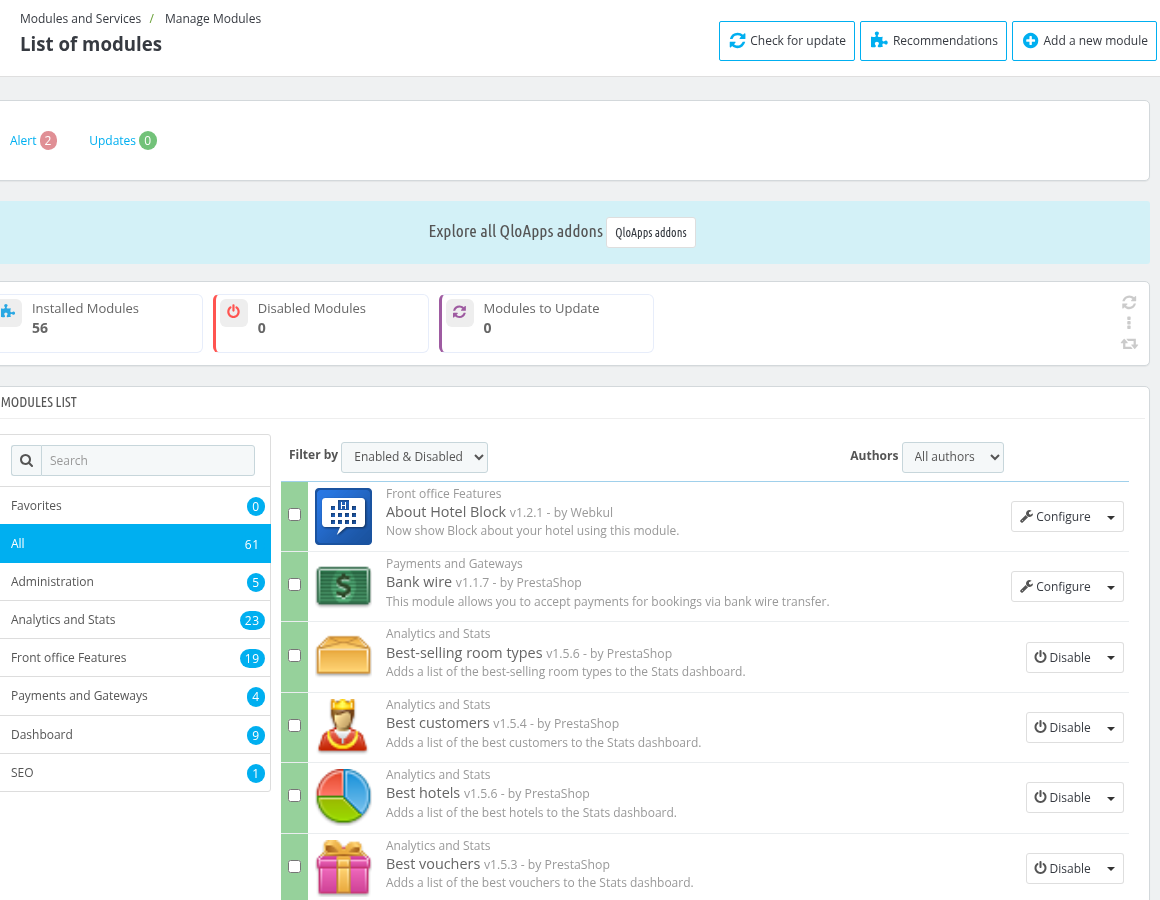
The Manage Modules section in QloApps provides a simple and efficient way to oversee all installed, disabled and to update-ready modules. It allows the admin to:
- Install, uninstall, enable, or disable modules.
- Enable, disable, install or uninstall several modules at once with the bulk actions.
- Configure module settings to match your needs.
- Update modules for improved performance and security alerts to notify if there's any issue.
- Quickly search and filter modules by enabled or disabled modules and by authors.
To open it, go to Modules and Services > Manage Modules.
# Add a new module
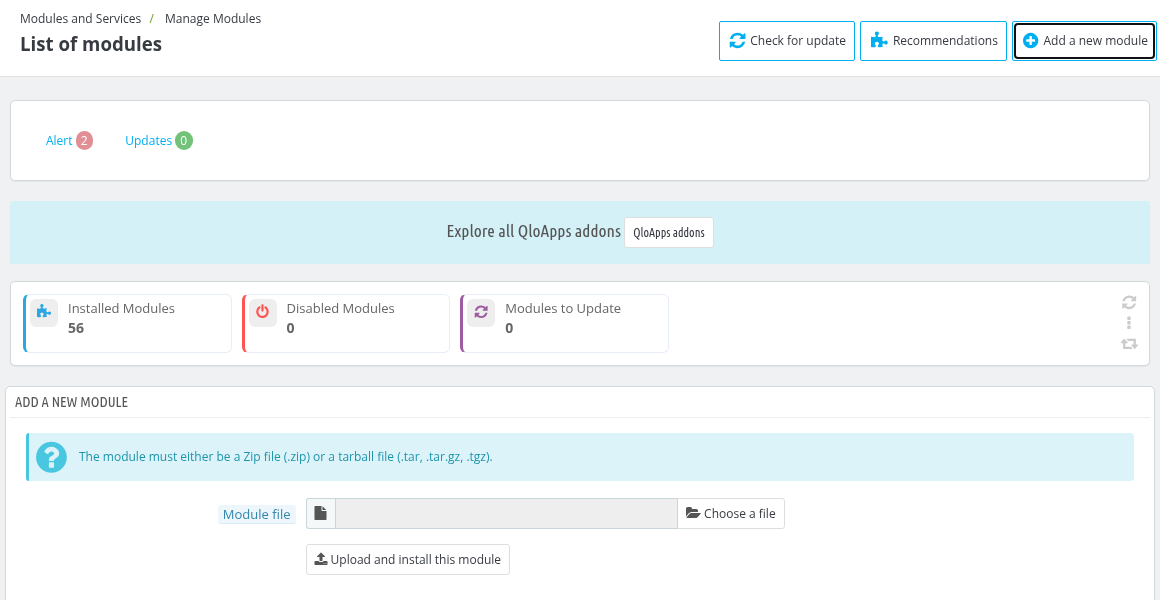
To add a new module click on add new module then the admin has to choose the zip file of the module and click on upload and install this module.
# Module List
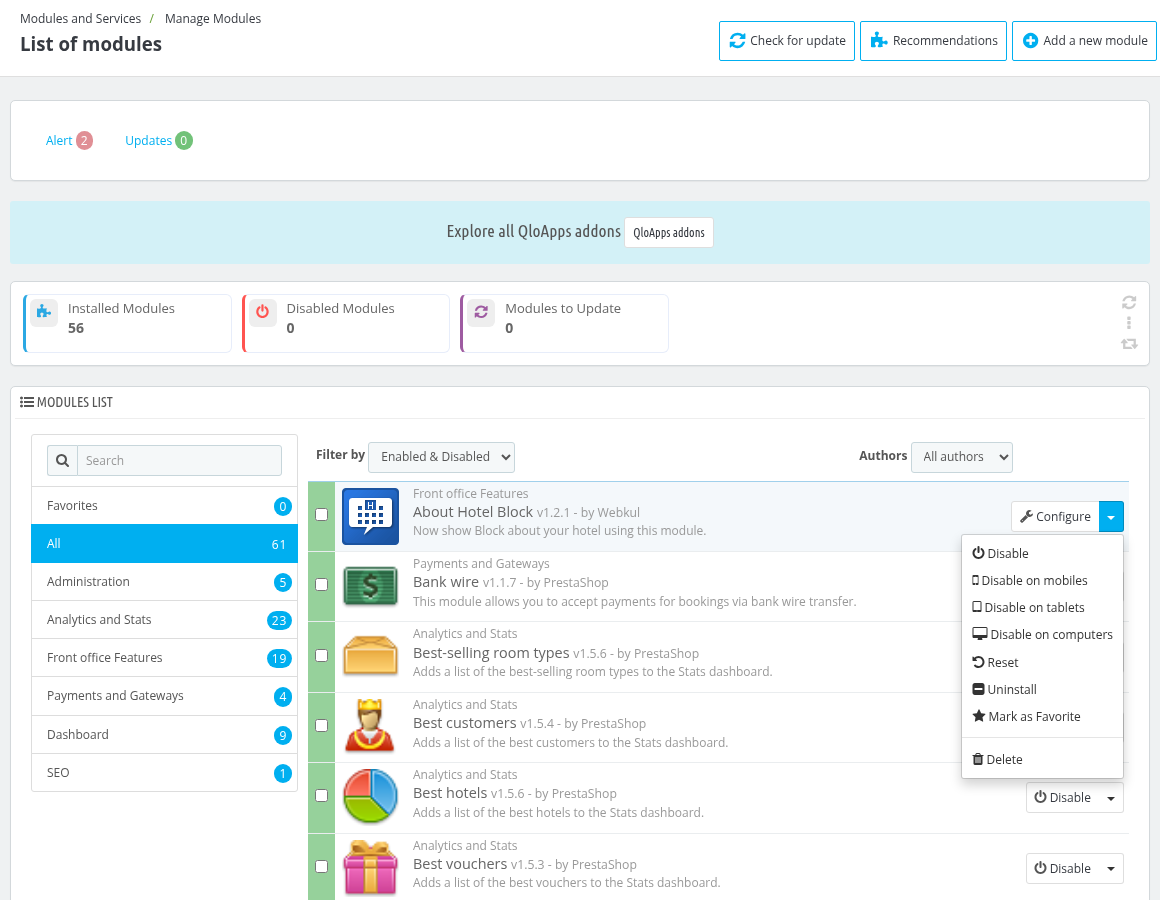
The Modules List section in QloApps provides a comprehensive overview of all available modules that can be installed or managed within the platform.
Modules are organized into categories such as:
- Favorites
- All
- Administration
- Analytics and Stats
- Front office Features
- Payments and Gateways
- Dashboard
- SEO
Admin can also Quickly search modules by name using the Search box above the categories, and filter them with the following options:
- Filter by : Choose Enabled & Disabled to see all the modules, Enabled Modules to see only the enabled modules or Disabled Modules to see only the disabled modules.
- Authors : Choose All authors or a single author of the module (eg: prestashop and webkul) to easily locate specific modules.
Note: The modules that are bundled with QloApps but not installed yet (for example the Sitemap Generator, PayPal Checkout and Duitku payment modules) are also listed here with an Install button.
Admin can Easily enable, disable, configure, or update each module with a simple click.
When the admin clicks on the drop-down button next Configuration, he will see the following options:
- Disable
- Disable on mobiles
- Disable on tablets
- Disable on computers
- Reset
- Uninstall
- Mark as favorite
- Delete
# Bulk actions
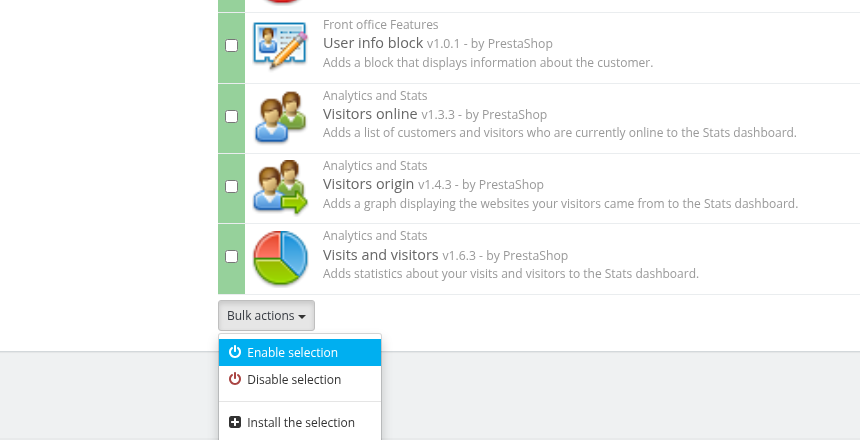
To work on many modules at once, the admin marks the checkbox at the beginning of each module and then clicks on the Bulk actions button shown below the list. The following options are available:
- Enable selection : Enables all the selected modules.
- Disable selection : Disables all the selected modules.
- Install the selection : Installs all the selected modules.
- Uninstall the selection : Uninstalls all the selected modules.