
# Manage Amenities
Under the Manage Amenities tab, the admin can create amenity categories (for example "Business Services" or "Complementary") and add the amenities that belong to each category. These amenities can then be assigned to the hotels in the Amenities tab of Manage Hotel.
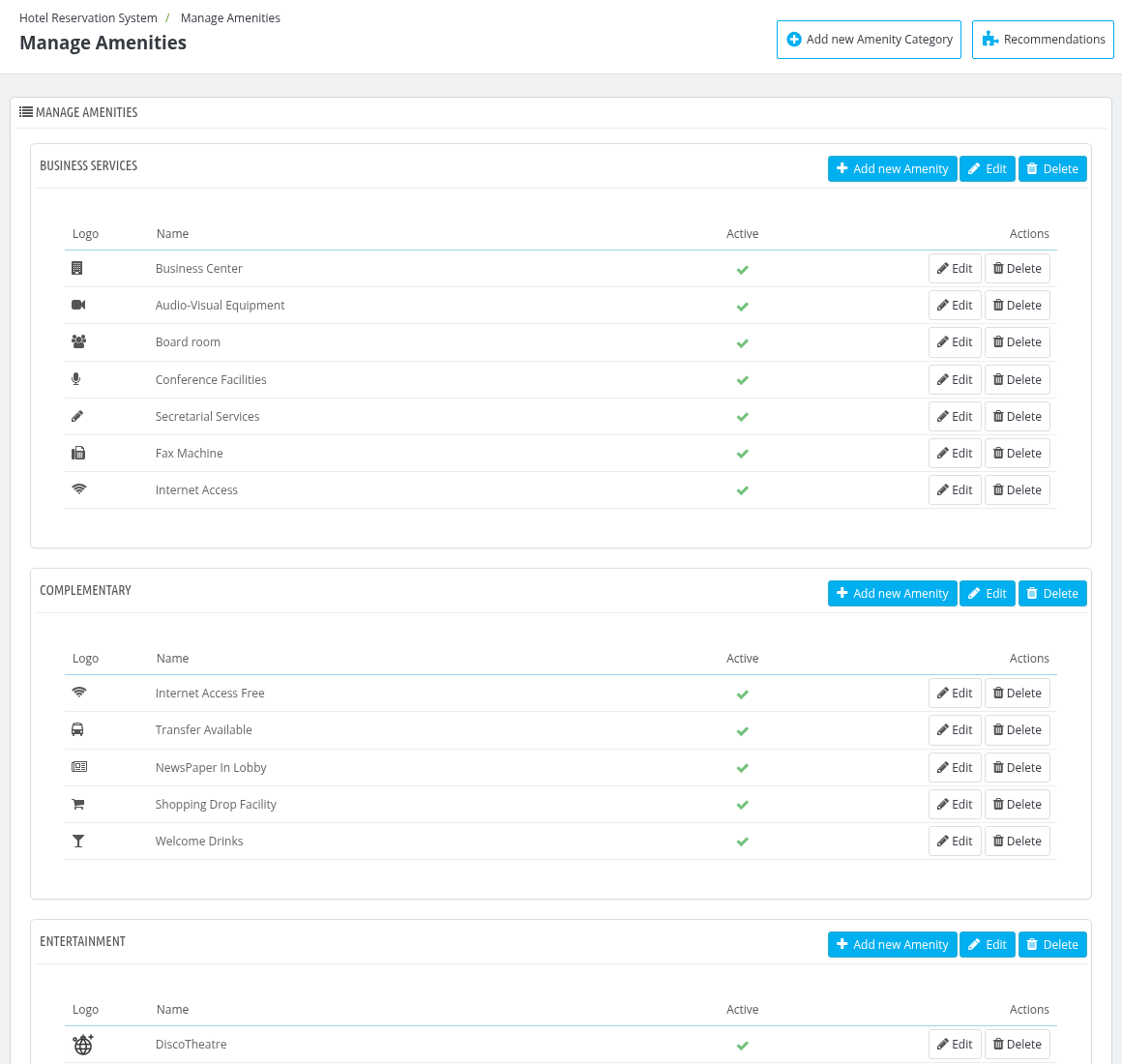
Every category is shown in its own block with the list of its amenities. The table shows the Logo, Name and Active status of each amenity, with the Edit and Delete buttons for it under Actions.
# Add a new Amenity Category
To add a new category, click on the "Add new Amenity Category" button at the top right of the page.
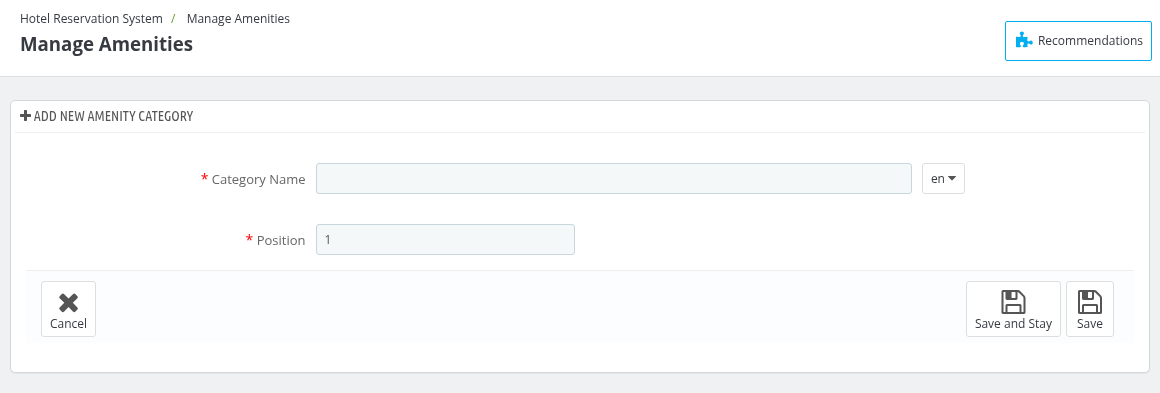
- Category Name: Enter the name of the category. It is required at least in the default language.
- Position: Define the display order of the category.
Click on Save to save the category.
# Add a new Amenity
To add an amenity to a category, click on the "Add new Amenity" button of that category block.
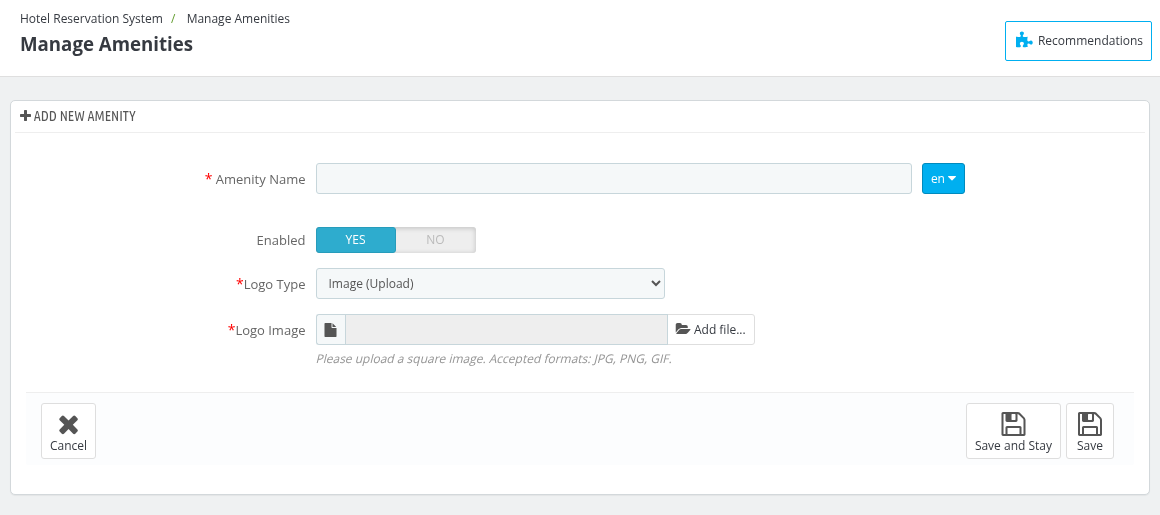
- Amenity Name: Enter the name of the amenity. It is required at least in the default language.
- Enabled: Enable or disable the amenity.
- Logo Type: Choose how the logo of the amenity is set. The available options are Image (Upload) and Icon (Font Awesome).
- Logo Image: Shown when the logo type is Image (Upload). Click on Add file... and upload a square image. The accepted formats are JPG, PNG and GIF.
If you choose Icon (Font Awesome) as the logo type, the Icon Class field is shown instead of the logo image.
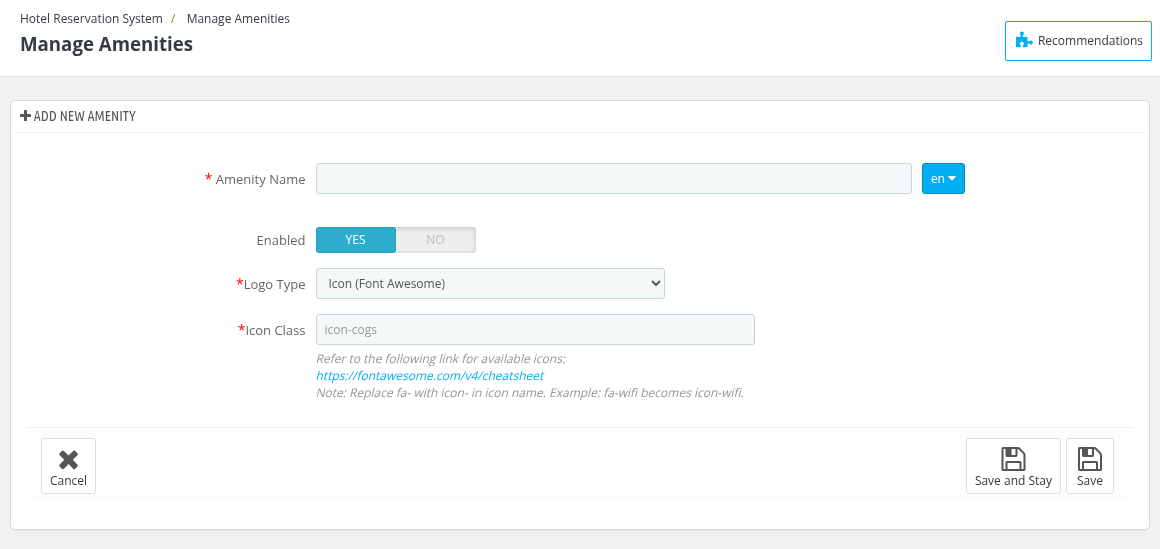
- Icon Class: Enter the icon class, which must start with "icon-" (for example, icon-wifi). The available icons can be found on the Font Awesome cheatsheet linked on the page. Replace "fa-" with "icon-" in the icon name, for example fa-wifi becomes icon-wifi.
Click on Save to save the amenity.
# Featured amenities
On the Amenities tab of a hotel and of a room type, you can also select Featured amenities from the amenities you selected. Featured amenities are shown to the guests on the Front Office:
- Room list: Each room card shows the featured amenities of the room as icons. The name of the amenity is shown when the guest moves the mouse over the icon.
- Room detail page: In the Room Information tab, Featured Amenities shows the featured amenities of the room type first, then the featured amenities of the hotel, without repeating any.
- Amenities filter: The room list has an Amenities filter that lists the active amenities of this page. Only the rooms that have all the selected amenities are displayed.
To limit the number of featured amenities shown on each room card, set Max featured amenities in room search in General Settings. Enter 0 to show all.
# Edit or delete an Amenity or a Category
- Click on the Edit button of a category block to change its name and position, or on the Edit button of an amenity to change its details.
- Click on the Delete button of a category or an amenity to delete it. A confirmation message is shown before the deletion.
- Click on the status icon in the Active column to enable or disable an amenity.