
# Business Sources
Business Sources are used to know from where your bookings are coming. Each Business Source (for example Direct or OTA) contains Booking Sources (for example Walk-in or Booking.com), and the Booking Source is selected on each order.
# Business Sources
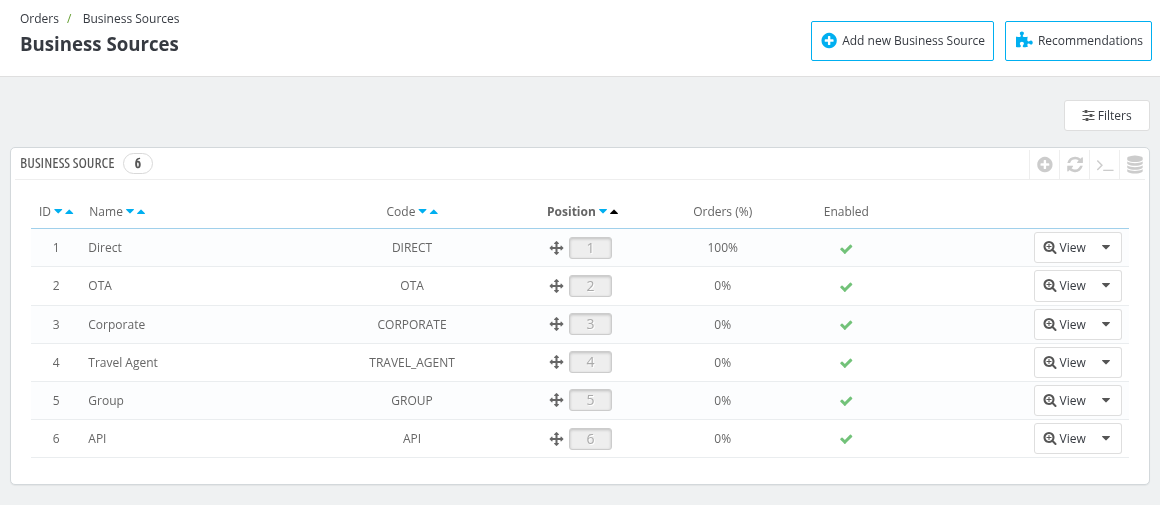
This page displays the list of all the Business Sources with the following details:
- ID : ID of the Business Source.
- Name : Name of the Business Source.
- Code : Code of the Business Source.
- Position : Position of the Business Source. Drag and drop the rows to change the position.
- Orders (%) : Percentage of the orders that came from this Business Source.
- Enabled : Click on the icon to enable or disable the Business Source.
Note: The Business Sources that are provided by default (Direct, OTA, Corporate, Travel Agent, Group and API) cannot be deleted. A Business Source that has default Booking Sources under it cannot be disabled.
# Add new Business Source
To add a new Business Source click on Add new Business Source.
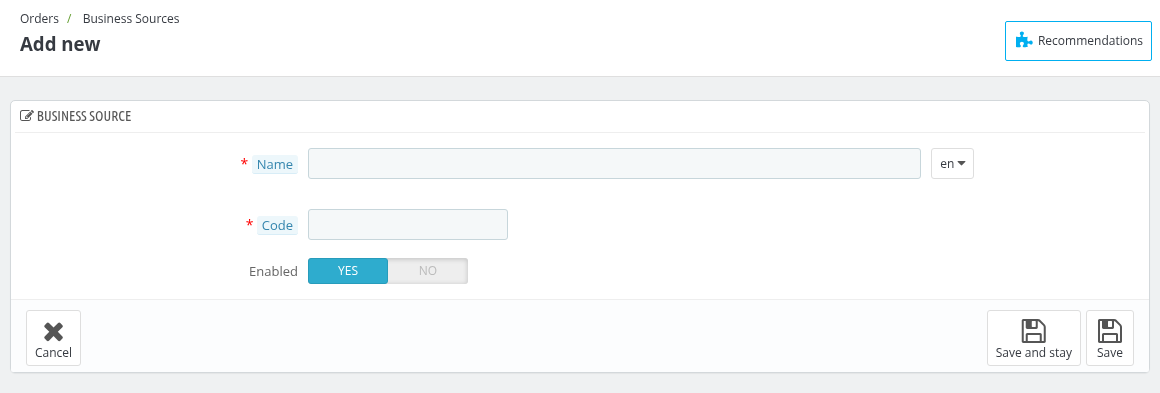
- Name : Enter the name of the Business Source.
- Code : Enter a short unique code, e.g. "OTA". Only letters, numbers, underscores and hyphens are allowed. The code cannot be changed after creation.
- Enabled : Select Enabled to use this Business Source, else select Disabled.
Click on Save to save the Business Source.
# Booking Sources
Click on View of a Business Source to see the Booking Sources under it.
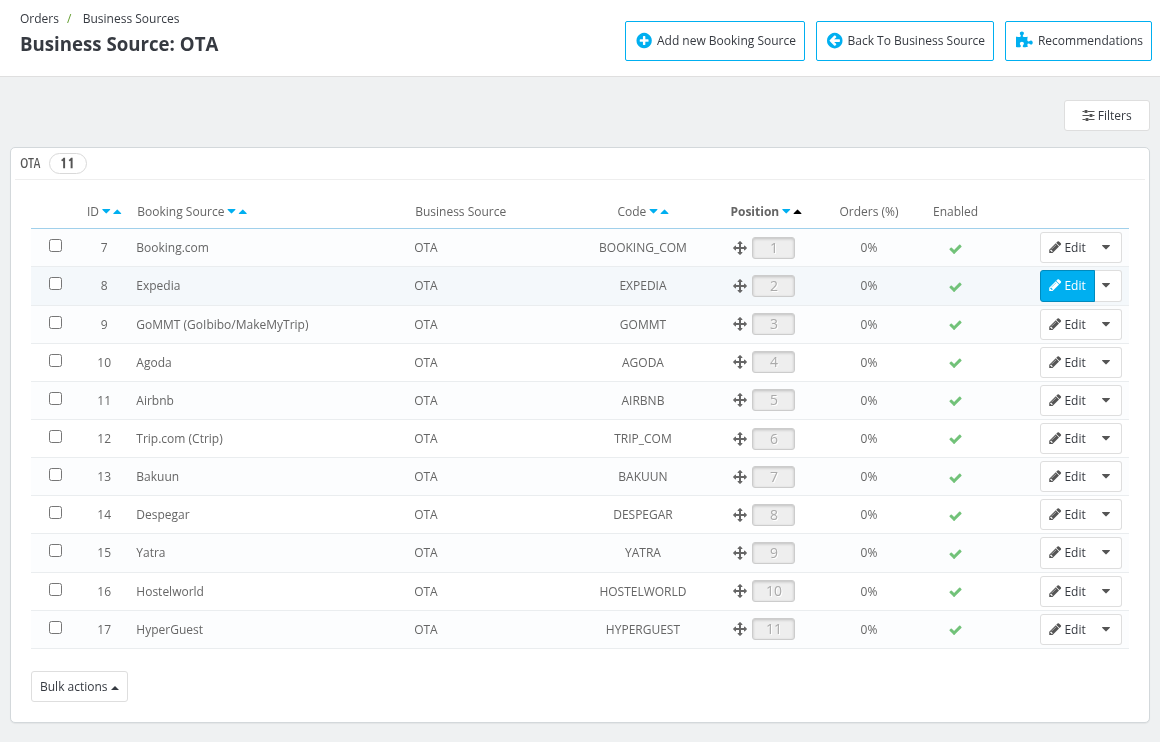
The list displays the ID, Booking Source, Business Source, Code, Position, Orders (%) and Enabled of each Booking Source. Click on Filters to filter the list. Use the buttons of a row to edit, merge or delete the Booking Source. You can also select multiple Booking Sources and delete them with Bulk actions.
Note: The Booking Sources that are provided by default (for example Walk-in and Direct Website) cannot be deleted or disabled. A Booking Source cannot be enabled while its Business Source is disabled.
# Add new Booking Source
To add a new Booking Source click on Add new Booking Source.
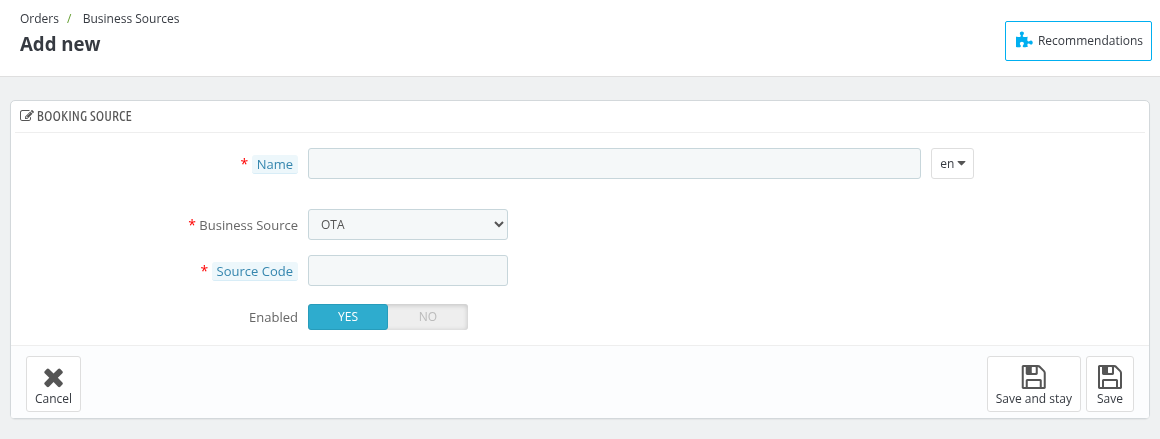
- Booking Source : Enter the name of the Booking Source.
- Business Source : Select the Business Source under which this Booking Source will come.
- Source Code : Enter a short unique code, e.g. "BOOKING_COM". Only letters, numbers, underscores and hyphens are allowed. The code cannot be changed after creation.
- Enabled : Select Enabled to use this Booking Source, else select Disabled.
Click on Save to save the Booking Source.
# Merge Booking Source
If you want to move the orders of one Booking Source to another Booking Source of the same Business Source, click on Merge in the dropdown of the Booking Source.
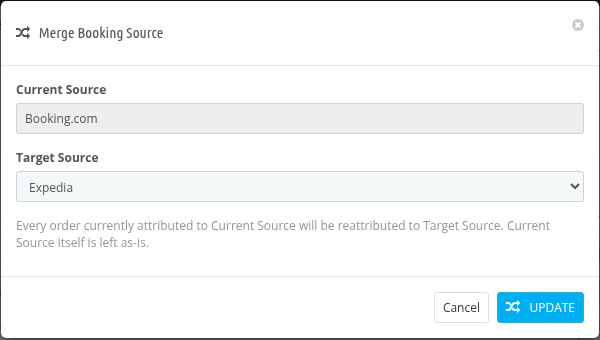
- Current Source : The Booking Source whose orders will be moved.
- Target Source : Select the Booking Source to which the orders will be moved.
Every order currently attributed to Current Source will be reattributed to Target Source. Current Source itself is left as-is. Click on Update to merge.