
# Checkout Page
The Checkout Page allows guests to review their booking details, apply coupon codes, enter guest information, select a payment method, and complete the reservation.
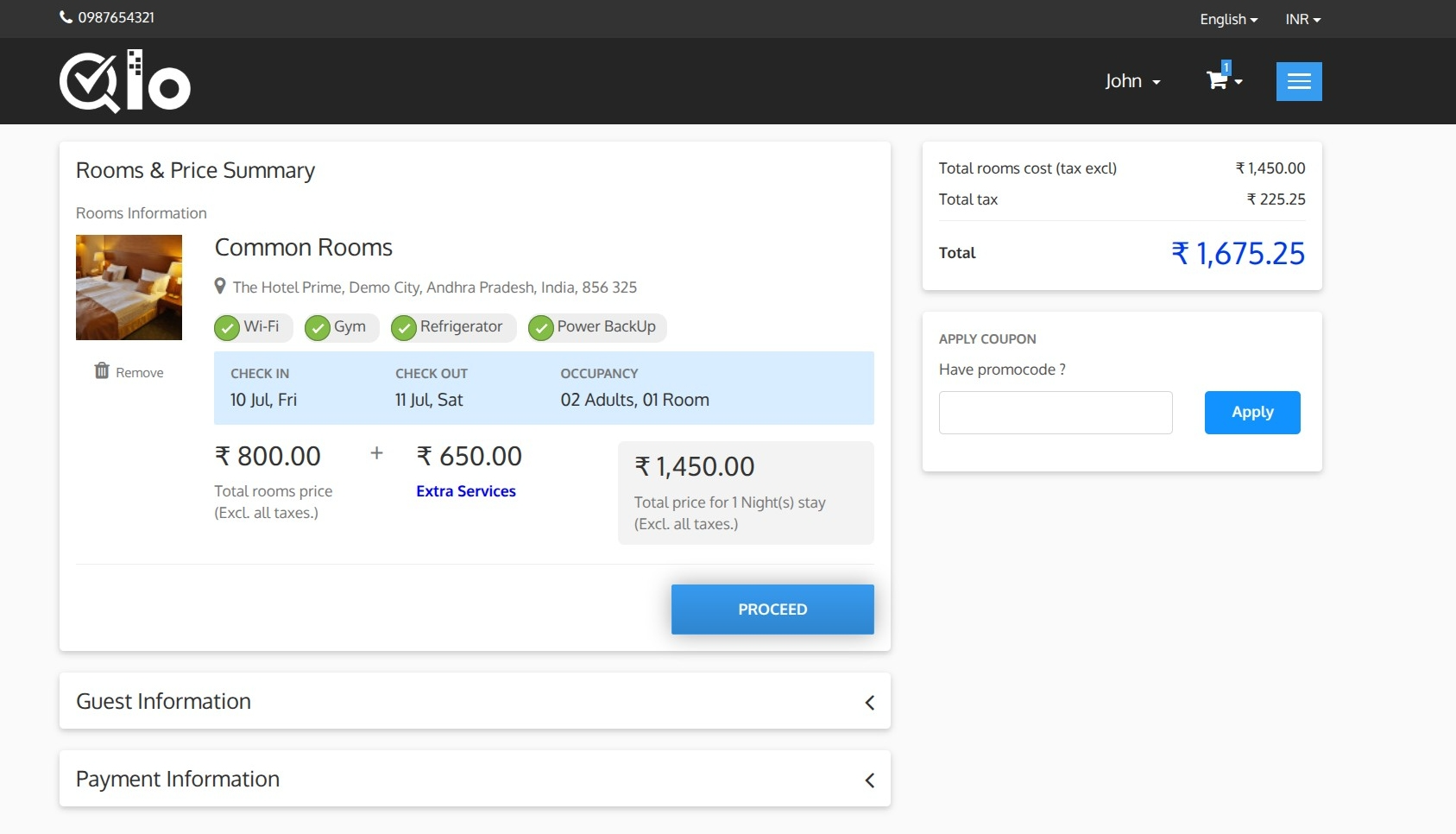
The Rooms & Price Summary section displays the details of the selected room, including:
- Room name and image
- Hotel information
- Room amenities
- Check-in and check-out dates
- Occupancy details
- Room price
- Total room cost
Guests can click Remove to remove the room from the booking.
# Booking Total
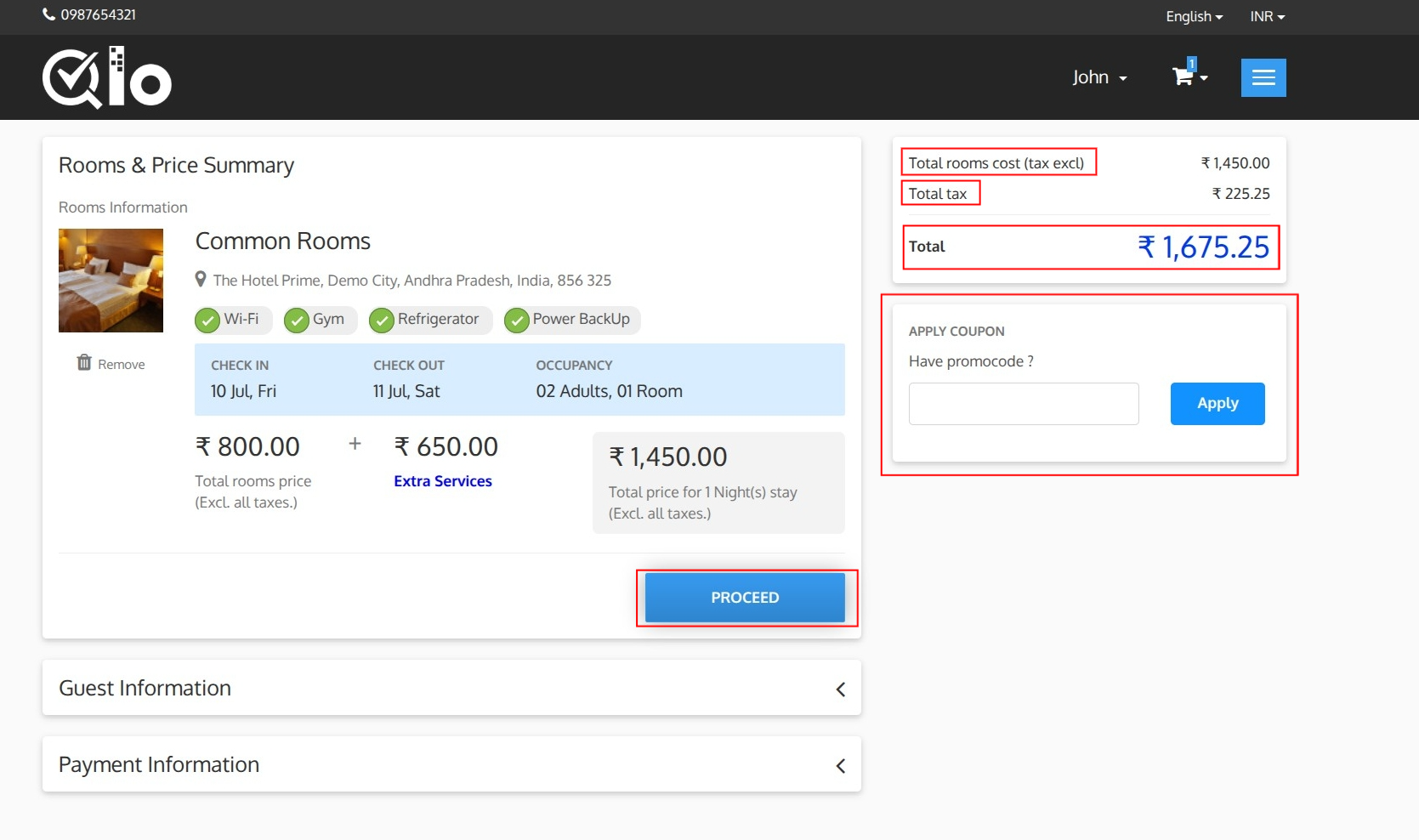
The Booking Total section provides a detailed breakdown of the reservation cost.
# Total Rooms Cost (Tax Excl.)
Displays the total cost of all selected rooms without tax.
# Total Tax
Displays the total tax amount calculated based on the room charges and the tax rules configured by the hotel.
# Total
Displays the final amount payable by the guest, including room charges and applicable taxes.
# Apply Coupon
If a promotional code is available, enter it in the coupon field and click Apply to receive the applicable discount.
Note for Administrators: Coupons can be created and managed from Manage Discounts → Cart Rules in the Back Office. For more information, refer to the QloApps documentation: Cart Rules (opens new window).
# Proceed
After reviewing the booking details, click Proceed to continue to the Guest Information section.