
# Guest Information
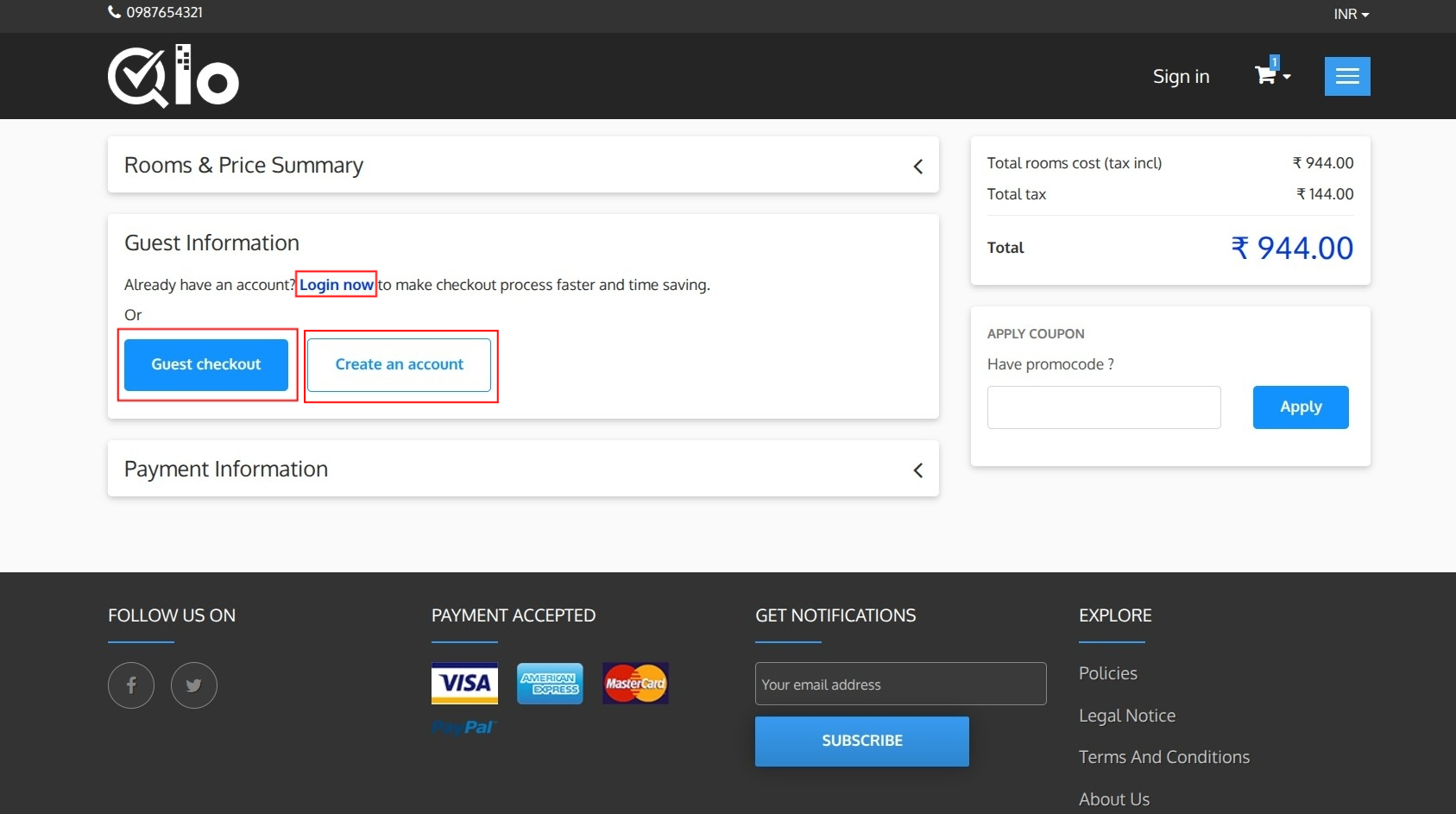
The Guest Information section allows guests to choose how they would like to proceed with the booking.
Guests can select one of the following options:
- Login Now: Sign in using an existing account to continue the booking.
- Guest Checkout: Complete the booking without creating an account.
- Create an Account: Register a new account before proceeding with the booking.
# 1. Guest Checkout
Guests can complete the booking process without creating an account by using the Guest Checkout option. This allows first-time or one-time visitors to make a booking quickly without registering on the website.
During Guest Checkout, guests must provide the following information:
- Social Title
- First Name
- Last Name
- Email Address
- Phone Number
Fields marked with an asterisk (*) are mandatory.
Note for Administrators: Guest Checkout can be enabled or disabled from Preferences → Orders → General → Enable Guest Checkout. For more information, refer to the QloApps documentation: General (opens new window)
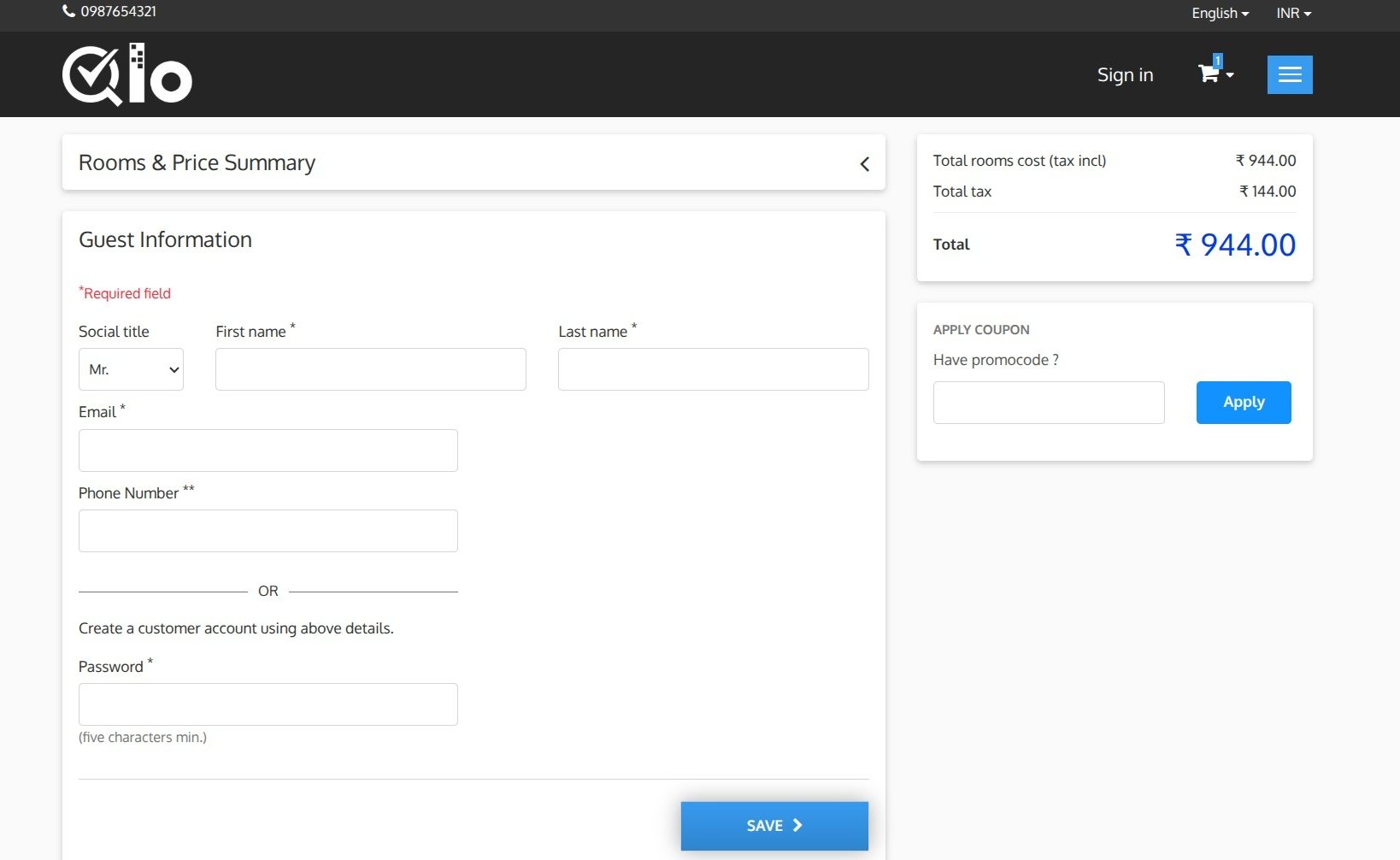
After entering the required details, click Save.
The entered information is saved and displayed in a summary view within the Guest Information section. Guests can review the information before continuing with the checkout process.
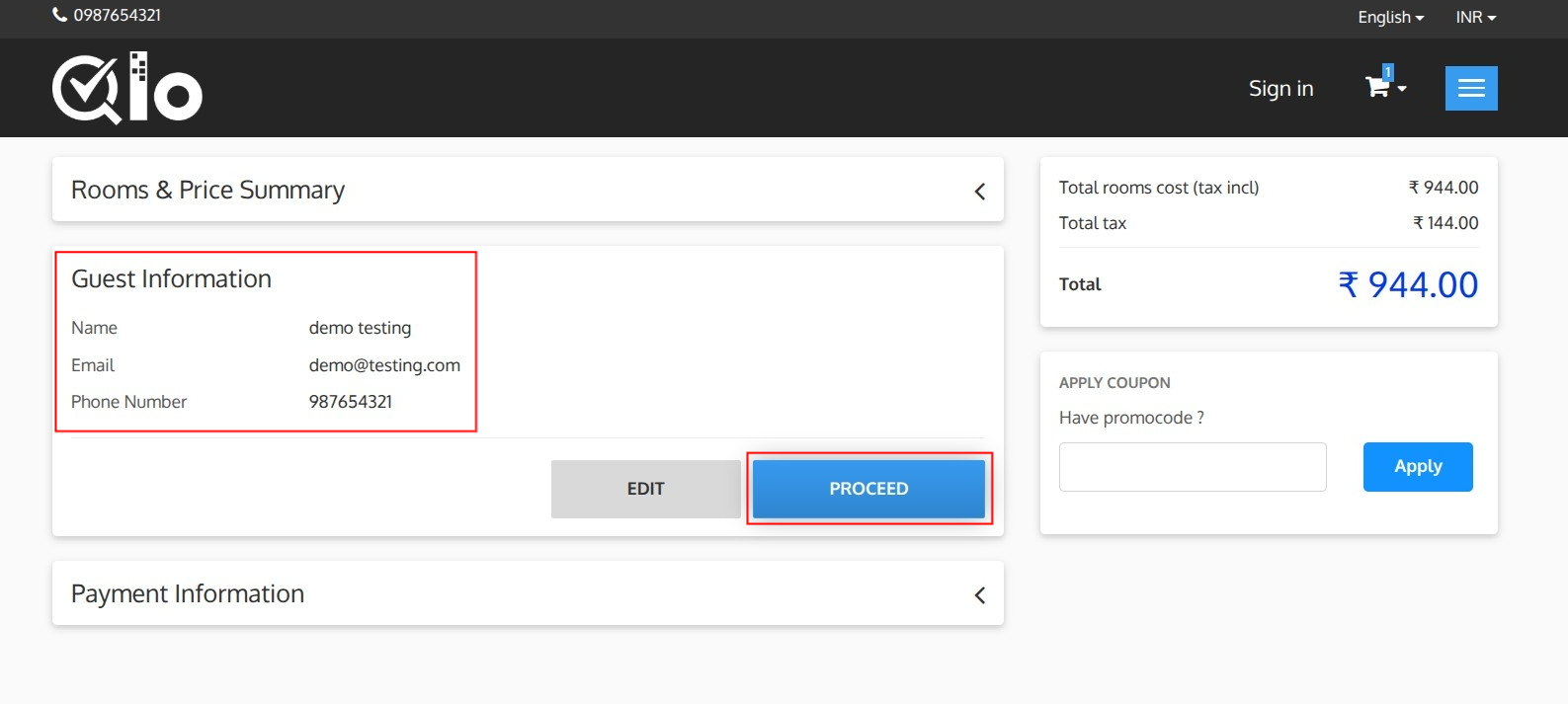
The summary displays:
- Name: Displays the guest's full name.
- Email: Displays the registered email address.
- Phone Number: Displays the contact number provided during Guest Checkout.
Guests can perform the following actions:
- Edit: Click Edit to modify the guest information. The Guest Information form will reopen, allowing changes before continuing.
- Proceed: Click Proceed to continue to the Payment Information section.
# 2. Registered User Checkout
Select Login Now to sign in using an existing account.
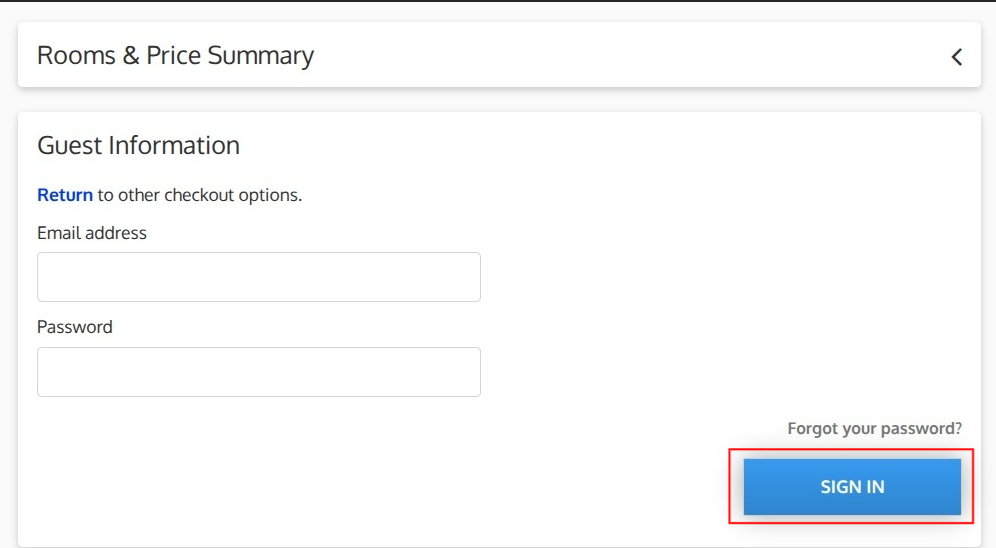
# Login Information
Enter the following details:
- Email Address: Enter the email address associated with your account.
- Password: Enter your account password.
# Forgot Password
If you cannot remember your password, click Forgot your password? to reset your account password.
# Sign In
After entering your credentials, click Sign In to log in and continue with the booking process.
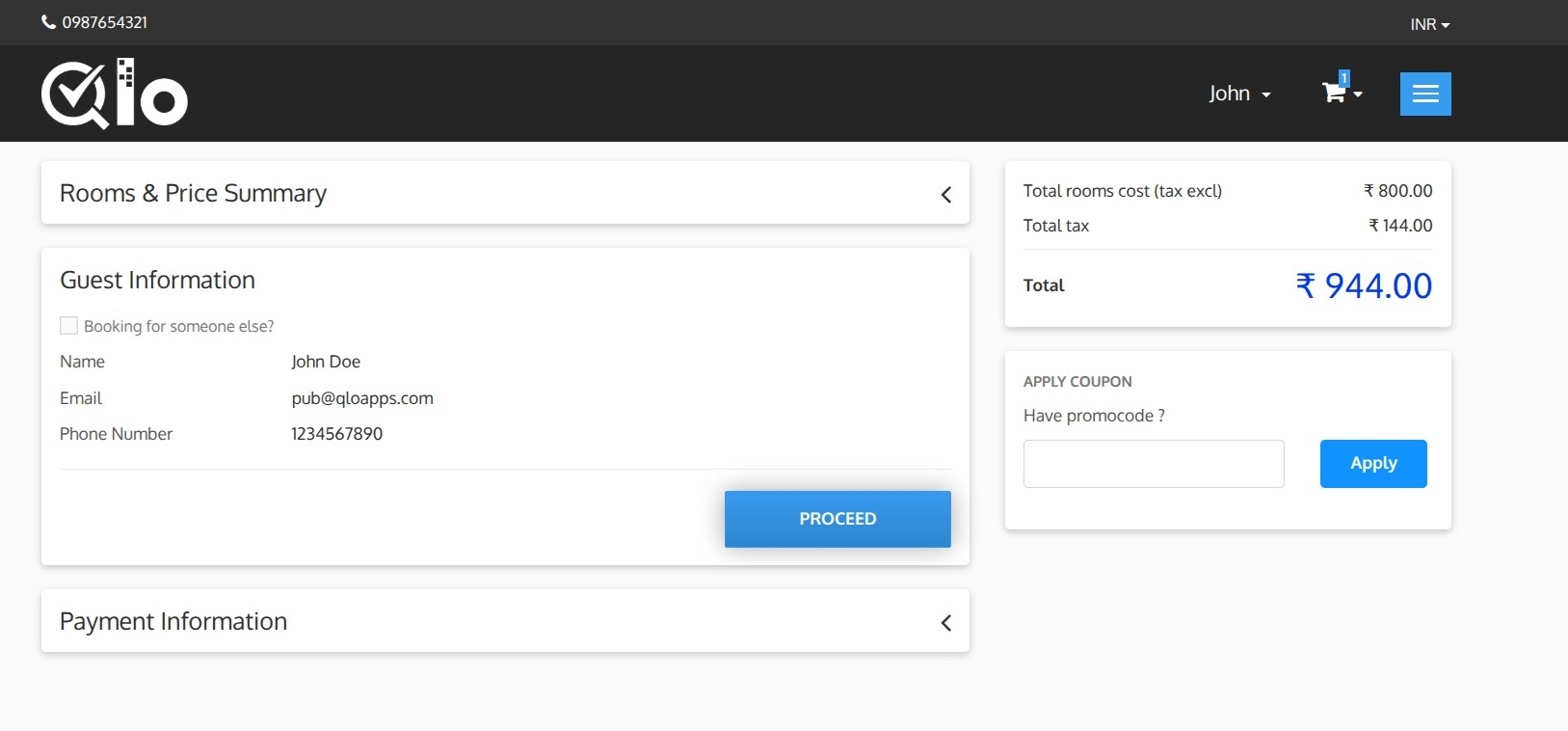
After signing in, your personal details are automatically displayed in the Guest Information section, including:
- Name
- Email Address
- Phone Number
This information is retrieved from your account and will be used for the reservation.
# Booking for Someone Else
If you are making a reservation on behalf of another person, select the Booking for Someone Else? checkbox and enter the guest's details.
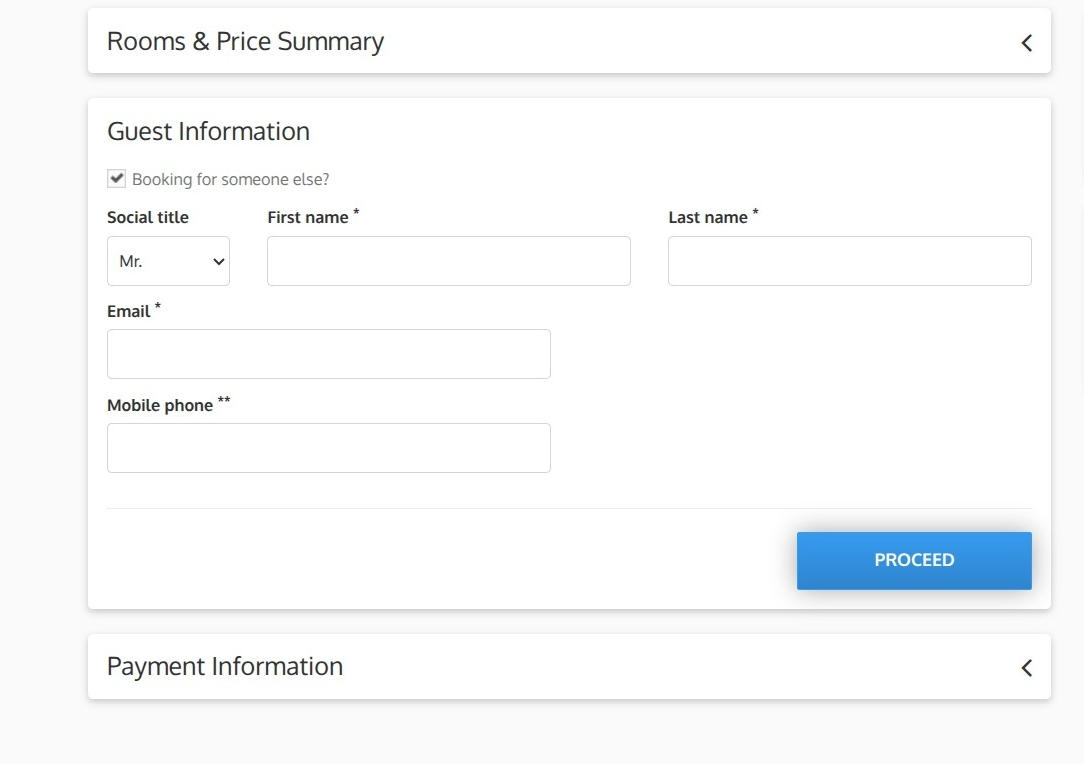
After reviewing the guest information, click Proceed to continue to the Payment Information section.